SSP Kitchen Display
SSP Kitchen is the screen in your kitchen. Every order a waiter sends, every web order a guest places, every course a table is waiting for and every plate that needs to reach the pass shows up here the moment it happens — and every tap a cook makes travels straight back to the waiter's screen, the guest's phone and SSP Manager.
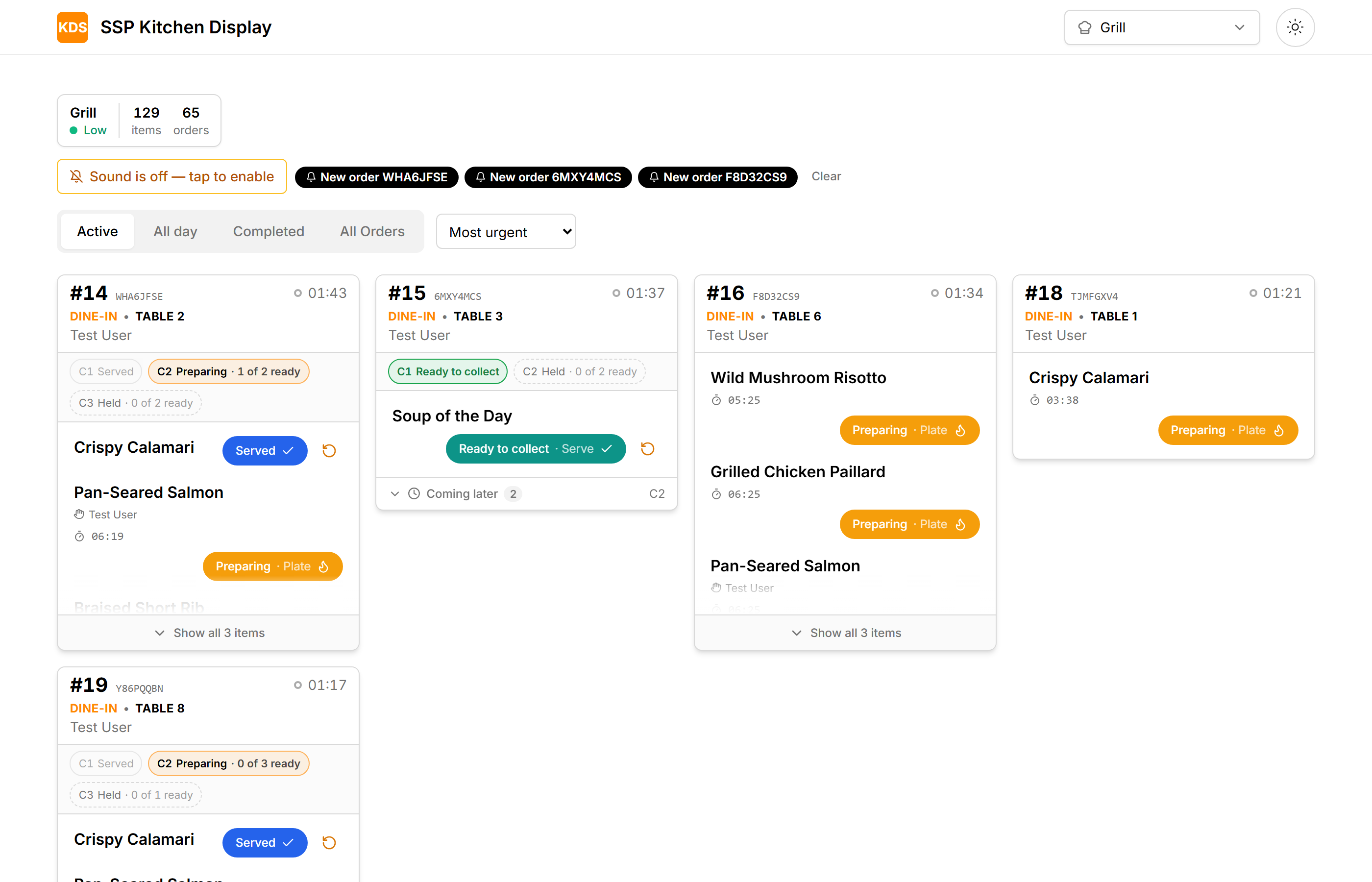
What the KDS does
- Shows tickets as they arrive. Each order is a card. Each line on the card is a dish; a line with a quantity of three is three plates the cook can move one at a time, or all at once.
- Knows which screen is which. A grill screen sees grill items, the bar sees drinks, and the Expo screen (the pass) sees everything and runs the ticket. See Screens and views.
- Runs courses. Starters go out while mains wait under the ticket as Coming later until the pass fires them. See Courses and the Expo screen.
- Keeps time. Every ticket carries a clock, every cooking line a countdown, and the screen turns amber and red — and chimes — using the thresholds set in SSP Manager. See Alarms and sounds.
- Counts the day. The All day tab turns the board into "how many of each dish still to make". See All day counts.
- Catches web orders. Orders placed online wait in a panel above the board until someone accepts them with a ready time, and a pickup order is closed with Picked up, on the board or from the QR on its chit. See Web orders and pre-orders.
- Lets the kitchen 86 a dish it has run out of, straight from the item sheet. See Working a ticket.
How it fits with the rest of SSP
| App | What it sends the KDS | What it gets back |
|---|---|---|
| SSP Waiter | Tickets, courses to fire, quantity changes, rush priority | Line status (Preparing, Ready, Served), dishes 86'd |
| SSP Guest (web orders) | Orders that need accepting, pre-orders for later | "Your order is being prepared", "Ready to collect", "Picked up" |
| SSP Manager | Stations, routing, prep times, alarm thresholds, capacity | Kitchen load, overdue history, analytics |
Stations, routing classes and thresholds are all set up in SSP Manager — the KDS only reads them. The three Manager pages to know are Kitchen Stations, Kitchen Routing and Kitchen Capacity & Load.
Getting started
- Open
kitchen.ssppos.comon the kitchen tablet or screen and tap Sign in with SSP, or, from SSP Manager, open the SSP Apps menu in the top bar and choose SSP Kitchen. The KDS shares your SSP Manager login; there is no separate kitchen password and no PIN. See Signing in and out. - Pick the location, if your account has more than one.
- Open the station picker in the top-right corner and tick the station (or stations) this screen is responsible for. The choice is remembered on this device.
- Tap Sound is off — tap to enable once. Browsers block sound until the screen has been touched.
- Leave the Active tab open. That is the board.
The KDS screen is in English only, whatever the language of the browser. The green Payé en ligne mark on orders paid online is its one French label.
How updates reach the screen
Changes arrive live over a private channel for the location. As a safety net the board also re-reads itself every 30 seconds, so if the connection drops for a moment nothing stays stale for long. If a ticket is moving on the waiter's screen but not on this one, see Troubleshooting.
Who can do what
The KDS uses the same roles and permissions as the rest of SSP. Every control is on screen for everyone; SSP checks the permission when a button is tapped, and if the account signed in on this screen doesn't have it, a red message says so and nothing changes.
| On the KDS | Permission SSP checks | Kitchen staff | Location or floor manager |
|---|---|---|---|
| See the board | View Orders | ✅ | ✅ |
| Start, Claim, Plate, Put on hold, Resume, Recall and the item sheet's quick actions | Update Item List Status | ✅ | ❌ |
| Release course N, Release to runner | Update Item List Status | ✅ | ❌ |
| Acknowledge allergy | Update Item List Status | ✅ | ❌ |
| Serve a plated dish | Update Item List Status, or Serve Order Items | ✅ | ✅ |
| The status dropdown, Mark Ticket Ready, Complete Order | Update Order Status (Serve Order Items allows Served only) | ✅ | Served only |
| Accept or turn down a web order | Accept or Reject Web Orders | ✅ | ✅ |
| Picked up | Accept or Reject Web Orders, Serve Order Items or Update Orders | ✅ | ✅ ¹ |
| 86 a dish | 86 Menu Items | ✅ | ✅ |
| Fire course N | Submit Orders | ❌ | ✅ |
¹ Picked up also closes the ticket. A manager's login can close it to Served, but not to Completed, so on an order whose status is already Paid the pickup is recorded and the ticket stays up.
What this means in the kitchen:
- Sign kitchen screens in with a Kitchen staff account. A manager's own login can watch the board, serve, accept web orders, 86 and fire courses, but it can't cook from the board. A refused tap shows the server's raw message, for example Missing permission: update_item_list_status (serve_order_items allows SERVED only).
- Firing a course needs Submit Orders, the same permission as sending an order to the kitchen, and the Kitchen staff role doesn't include it. Fire course N on the Expo screen therefore works only for a manager, floor manager or waiter account. If the pass fires courses from the Expo screen, give the account signed in there that permission in SSP Manager. Permissions can be adjusted per person; see Managing permissions.
This split between kitchen and manager permissions is being reviewed (LRSSPBackend #2620). This page describes what SSP does today.