SSP Kitchen Display
SSP Kitchen is the screen in your kitchen. Every order a waiter sends, every web order a guest places, every course a table is waiting for and every plate that needs to reach the pass shows up here the moment it happens — and every tap a cook makes travels straight back to the waiter's screen, the guest's phone and SSP Manager.
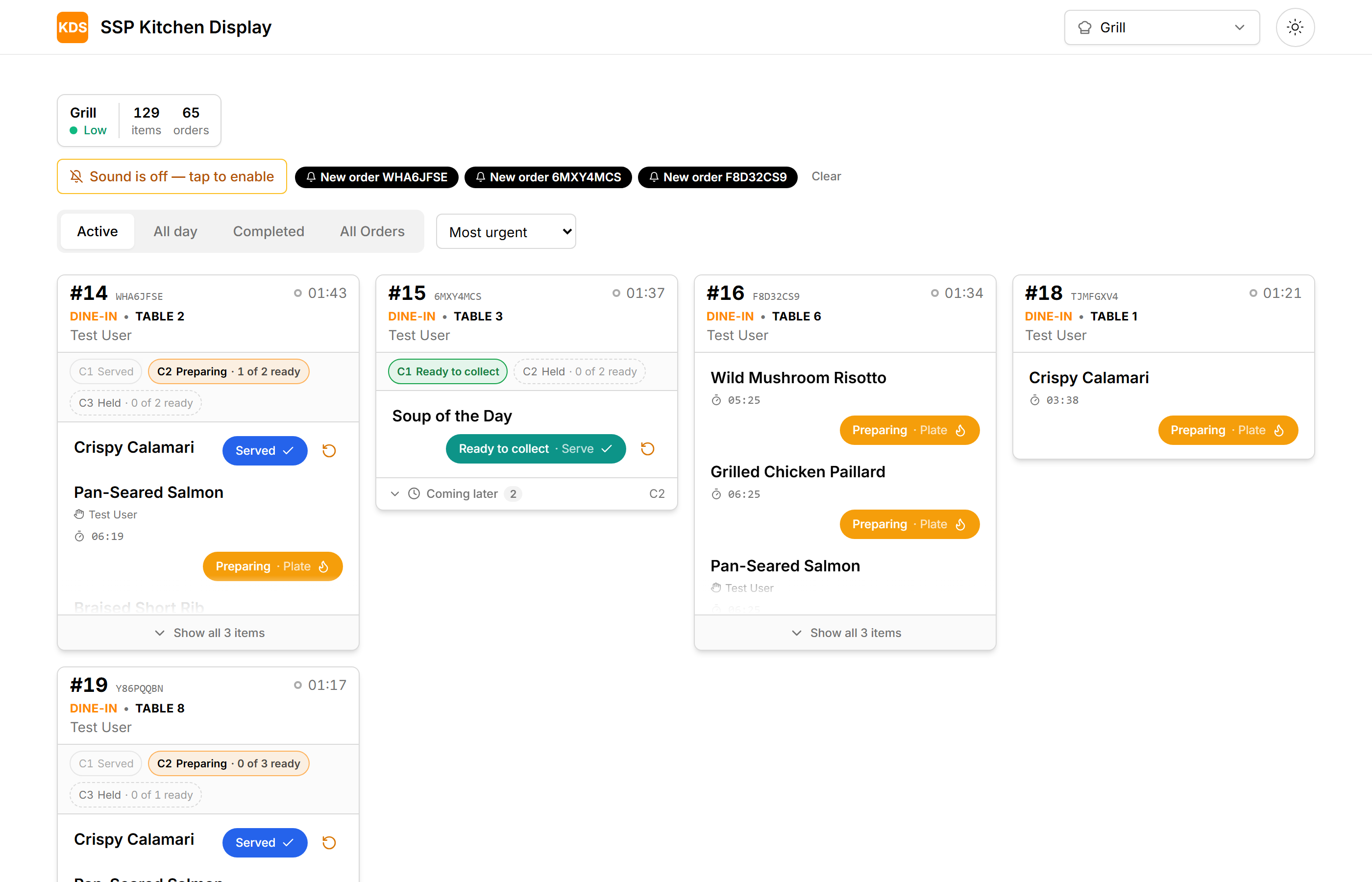
What the KDS does
- Shows tickets as they arrive. Each order is a card. Each line on the card is a dish; a line with a quantity of three is three plates the cook can move one at a time, or all at once.
- Knows which screen is which. A grill screen sees grill items, the bar sees drinks, and the Expo screen (the pass) sees everything and runs the ticket. See Screens and views.
- Runs courses. Starters go out while mains wait under the ticket as Coming later until the pass fires them. See Courses and the Expo screen.
- Keeps time. Every ticket carries a clock, every cooking line a countdown, and the screen turns amber and red — and chimes — using the thresholds set in SSP Manager. See Alarms and sounds.
- Counts the day. The All day tab turns the board into "how many of each dish still to make". See All day counts.
- Catches web orders. Orders placed online wait in a panel above the board until someone accepts them with a ready time. See Web orders and pre-orders.
- Lets the kitchen 86 a dish it has run out of, straight from the item sheet. See Working a ticket.
How it fits with the rest of SSP
| App | What it sends the KDS | What it gets back |
|---|---|---|
| SSP Waiter | Tickets, courses to fire, quantity changes, rush priority | Line status (Preparing, Ready, Served), dishes 86'd |
| SSP Guest (web orders) | Orders that need accepting, pre-orders for later | "Your order is being prepared", "Ready to collect" |
| SSP Manager | Stations, routing, prep times, alarm thresholds, capacity | Kitchen load, overdue history, analytics |
Stations, routing classes and thresholds are all set up in SSP Manager — the KDS only reads them. The three Manager pages to know are Kitchen Stations, Kitchen Routing and Kitchen Capacity & Load.
Getting started
- Open
kitchen.ssppos.comon the kitchen tablet or screen and tap Sign in with SSP. The KDS shares your SSP Manager login; there is no separate kitchen password. See Signing in and out. - Pick the location, if your account has more than one.
- Open the station picker in the top-right corner and tick the station (or stations) this screen is responsible for. The choice is remembered on this device.
- Tap Sound is off — tap to enable once. Browsers block sound until the screen has been touched.
- Leave the Active tab open. That is the board.
How updates reach the screen
Changes arrive live over a private channel for the location. As a safety net the board also re-reads itself every 30 seconds, so if the connection drops for a moment nothing stays stale for long. If a ticket is moving on the waiter's screen but not on this one, see Troubleshooting.
Who can do what
The KDS uses the same abilities as the rest of SSP. Every control is on screen for everyone; SSP checks the ability when a button is tapped, and if the account signed in on this screen doesn't have it, a red message says so and nothing changes.
| Ability | What it allows |
|---|---|
view_orders | See the board |
update_item_list_status | Start, claim, plate, serve, hold, resume and recall lines; release a course or a ticket from the Expo screen; change a ticket's status |
submit_orders | Fire the next course from the Expo screen |
eighty_six_menu_items | 86 a dish from the item sheet |
Abilities are granted per role in SSP Manager. A kitchen account normally has all four.