Screens and views
One KDS install serves the whole kitchen. What makes a screen "the grill" or "the pass" is the station it is set to show, chosen from the picker in the top bar.
The top bar
From left to right: the KDS tile and title, the station picker, the theme button (Light / Dark / System) and the avatar (name, email and Sign out). The bar stays fixed at the top and never scrolls away.
Choosing a station
Tap the chef-hat button to open the picker. It lists every active station at the location, in the order set in SSP Manager, with two tags:
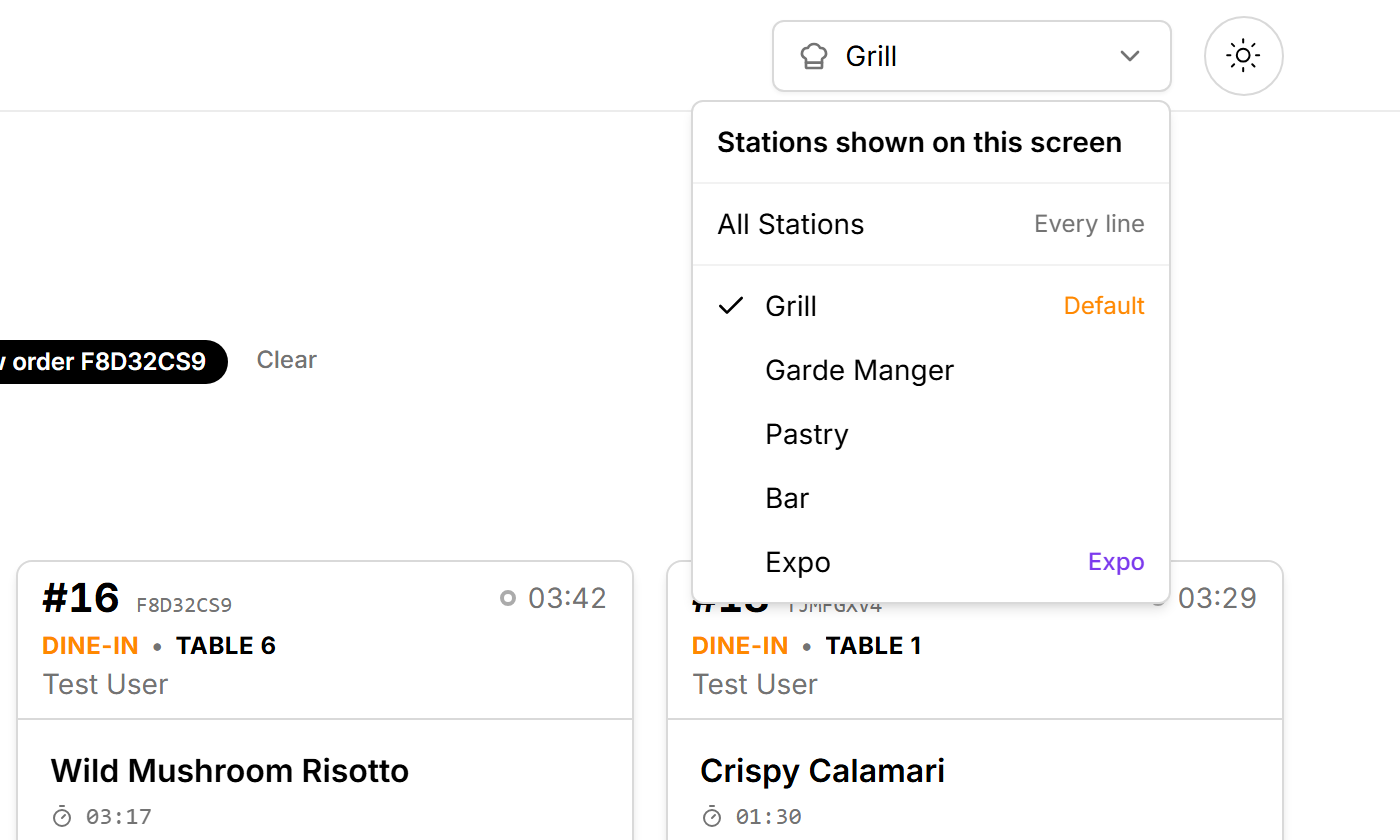
- Expo — the station has the Expo role: it is the pass.
- Default — the station that also receives any line SSP could not route anywhere else.
Tick as many as this screen should show; the menu stays open while you choose. The label on the button reads the station's name, N stations or All Stations when nothing is ticked. All Stations shows every line of every ticket.
What you tick decides what kind of screen this is:
| Screen | Sees | Can do |
|---|---|---|
| Prep screen — one or more prep stations ticked | Only the lines routed to those stations | Claim, start, plate, serve, hold, resume, recall and 86 its own lines |
| Expo screen — an Expo-role station is among the ticked ones | Every line of every ticket | Fire and release courses, release tickets to the runner, change a ticket's status, mark it ready, complete it. It does not move lines — the station that cooks does that |
| All Stations | Every line of every ticket | Both: it works lines like a prep screen and, if the location has no Expo station, carries the ticket controls too |
A location with no Expo station has nobody at the pass, so every screen there — prep or All Stations — carries the ticket-level controls (status dropdown, Mark Ticket Ready, Complete Order). Once an Expo station exists, those controls move to it and prep screens lose them. Fire and release course buttons only ever appear on an Expo screen. The roles are set on the Stations tab in SSP Manager.
Lines are filtered by station on the server, so a screen set to the grill never downloads the bar's drinks.
The tabs
| Tab | What it shows |
|---|---|
| Active | The board: every ticket with something still to cook or hand off. This is where a screen lives during service. |
| All day | The same tickets as Active, counted per dish instead of per ticket. See All day counts. |
| Completed | Tickets that have been served, paid or completed. |
| All Orders | Everything, including cancelled, voided and refunded tickets. |
The board always opens on Active after a reload. The tab is not remembered; the stations are.
Sorting the board
The Sort orders dropdown (hidden on All day) offers four orders. The choice is remembered per location and per tab.
| Sort | Order |
|---|---|
| Most urgent (default) | Tickets with an alarm chip first, then tickets nobody has started, then the rest — and within each group the longest-waiting ticket first. New-order chimes do not count as alarms here. |
| Newest first | Most recently placed at the top. |
| Longest waiting | The ticket that has waited longest, first. |
| Custom | The order you dragged them into. |
Dragging tickets
Hover a card and a grip appears on its left edge; drag it from there (the card collapses while it moves). The sort switches to Custom on its own and the order is saved on this device. Tickets that arrive later go to the front of a custom order. A Reset Order button appears whenever a custom order exists and takes the board back to Most urgent.
The grip shows on hover, so on a touch screen press and hold the card's left edge. If the screen is used only by touch, the three automatic sorts are usually the better choice.
Ready for handoff
A ticket with nothing left to cook on the whole order — every line on every station is plated or served — leaves the grid and goes to the Ready for handoff strip under the board, collapsed, with a count. Tap the header to open it. The strip exists on every tab and every kind of screen; on a prep screen it tells the cook the ticket is now the pass's problem.
Other things on the page
Depending on the location and the screen, the board can carry these sections above the grid:
- Incoming web orders — online orders waiting to be accepted. See Web orders and pre-orders.
- Station load gauges — one per ticked station on a prep screen. See Alarms and sounds.
- The alarm bar — sound toggle and alarm chips. See Alarms and sounds.
And below it, on the Active tab only:
- Later today — pre-orders that have not fired yet. See Web orders and pre-orders.
Empty board
While the board loads you see grey placeholder cards. An empty board says No orders found with a line that depends on the tab: There are no active orders for the selected station(s) right now, No completed orders to display or No orders available. If the board is empty but the waiter has sent tickets, check the station picker first — a screen set to a station nothing routes to is the usual cause.