Getting started
There are three ways into your table. Whichever one you use, you land on the same place: your table's order.
Tap the tag on your table
Most tables have a small tag built into the table itself or into the stand on it. Hold the top of your phone against it for a second. Your phone offers to open a link; accept it, and Scan. Splt. Pay. opens.
You will see Reading your table… while it works out which table you are at, then Connecting to your order…. If your server has already started an order for the table, their first name appears here.
Tapping opens a web page. There is nothing to download, and nothing to sign in to.
Open the link from your table
Some tables carry a printed link or code instead of a tag. Opening it does exactly the same thing as tapping, and lands on the same screen.
Type your order code
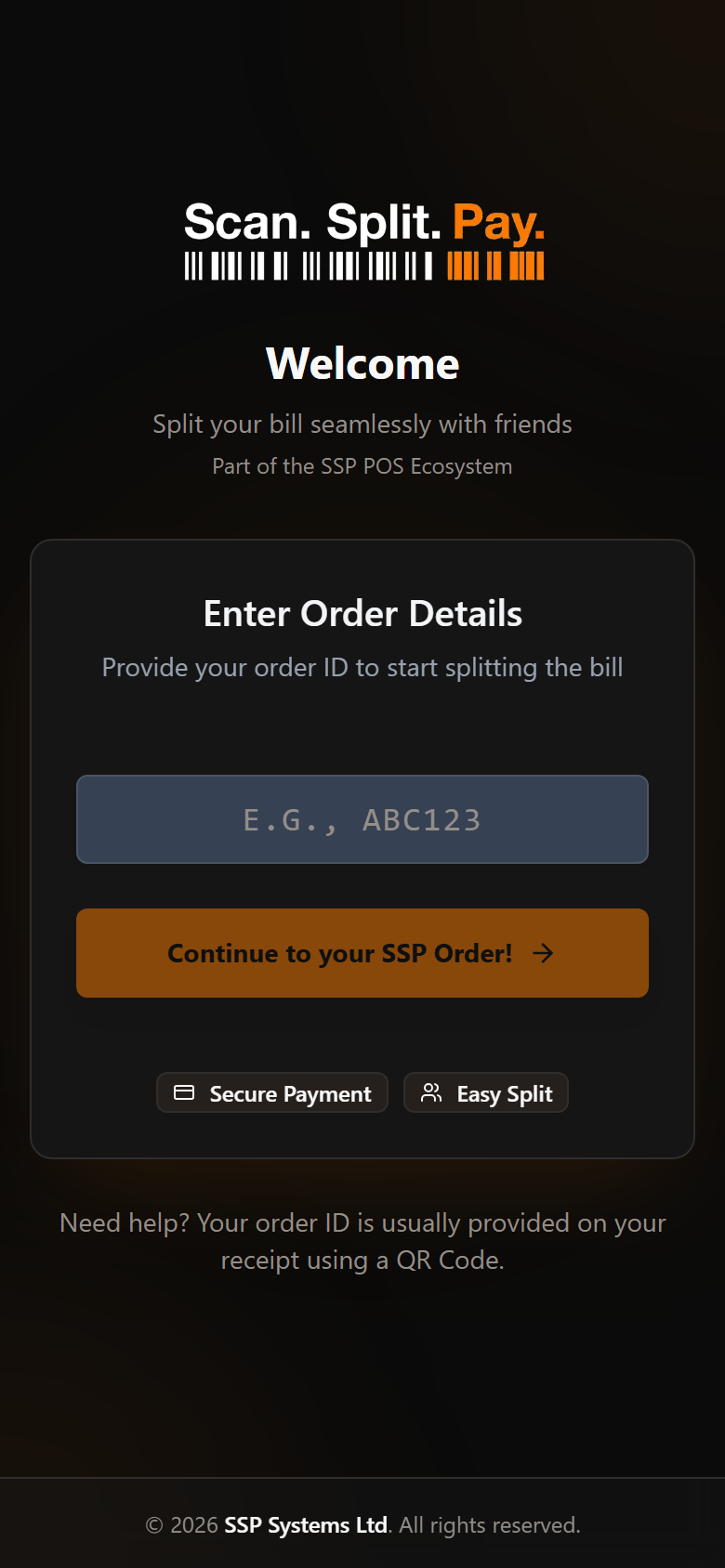
If you have an order code — your server can read it out, and it is printed on your receipt — open SPLT.ca and type it into the box. Codes are eight characters, like WHA6JFSE. Capital letters are not required; the box converts as you type.
Press Continue to your SSP Order! and you are in.
What happens if there is no order yet
If nobody has started an order for your table, what you see depends on how the restaurant has set things up. You may:
- be taken straight into a new, empty order for your table;
- be asked to let your server know, so they can open the table for you;
- simply be told there is no active order.
None of these is a fault. If you are not sure which applies, ask your server — opening a table takes them a moment.
What you see first
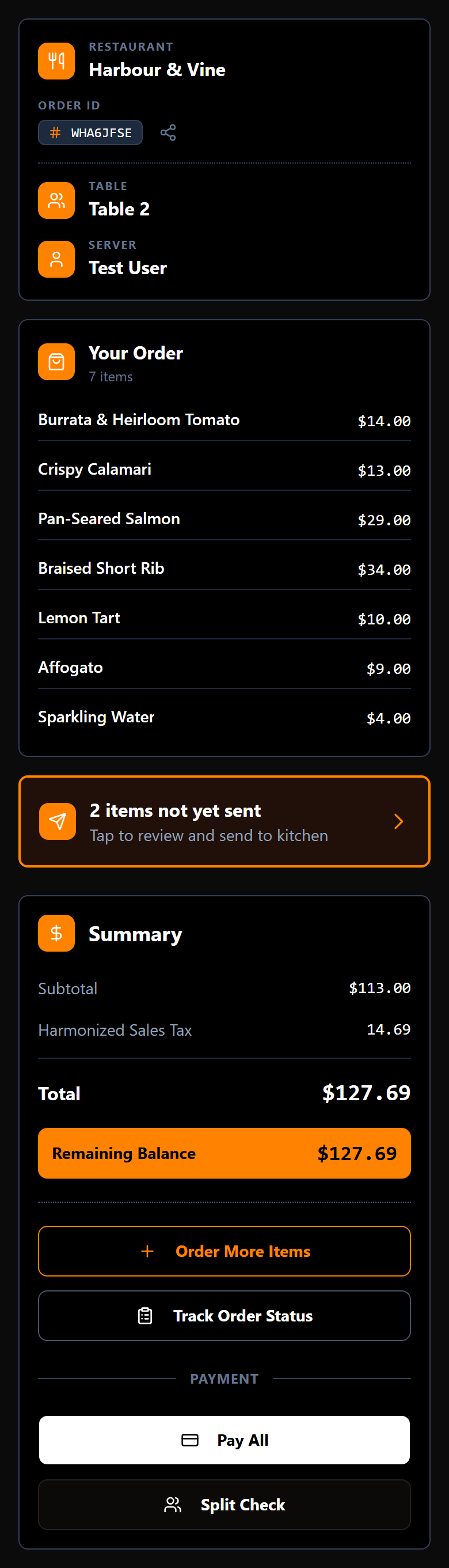
The order screen is your home base for the meal. It names the restaurant, your table, your server and your order code, and shows what the table has spent so far. Everything else in the app is one tap from here.