Orders Management
The Orders view provides a comprehensive list of all orders with powerful filtering, sorting, and bulk action capabilities.
Overview
Orders Management allows you to:
- View all orders with customizable filters
- Search orders by ID
- Sort by multiple columns
- Perform bulk operations on selected orders
- Use smart filter presets for common scenarios
Navigation: Sidebar → Orders
View Modes
Toggle between two viewing modes using the tabs at the top:
My Orders (Default)
Shows only orders where you are the assigned server.
Best for: Servers managing their own orders during a shift.
All Orders
Shows every order at your location, regardless of server assignment.
Best for: Hosts, managers, and when helping other servers.
Smart Filter Presets
Quick filter buttons provide instant access to common order groupings:
| Preset | Statuses Included | Use Case |
|---|---|---|
| Active Orders | Ordered, Preparing, Ready, Served, Partially paid, Paid | See all orders currently in progress |
| In Kitchen | Preparing | Monitor what's being prepared |
| Ready to Serve | Served | Find orders ready for delivery |
| Needs Payment | Served, Partially Paid | Orders waiting for payment |
| Ready to Close | Paid | Orders ready to complete |
| New Orders | Ordered | Recently created orders |
Using Presets
- Click the filter dropdown button
- Select a preset from the Quick Filters grid
- The button updates to show the preset name and icon
Custom Status Filtering
Below the presets, you can select individual statuses:
- Check/uncheck specific status checkboxes
- When your selection doesn't match a preset, it shows "Custom (X)"
- Click Clear to reset to a single status
Orders Table
Columns
| Column | Sortable | Description |
|---|---|---|
| Checkbox | No | Select orders for bulk actions |
| Order ID | ✅ | Unique order identifier (e.g., #ZNP338) |
| Party Size | ✅ | Number of guests |
| Time | ✅ | Elapsed time since order creation |
| Server | ✅ | Assigned server name |
| Table | ✅ | Table name (e.g. "Table 6") or "To-Go" |
| Total | ✅ | Order total amount |
| Remaining | No | Balance still owed |
| Status | ✅ | Current order status |
| Actions | No | Row shortcuts — see below |
Time Column
The Time column shows how long since the order was created:
| Display | Duration | Color |
|---|---|---|
15m | 15 minutes | ⬜ Gray (normal) |
45m | 45 minutes | 🟠 Orange (long) |
1h 30m | 90 minutes | 🔴 Red (very long) |
2d 3h | more than a day | 🔴 Red — a ticket somebody forgot to close |
Sorting
Click any sortable column header to sort:
- First click: Sort descending (newest/highest first)
- Second click: Sort ascending (oldest/lowest first)
- Active sort shows an arrow indicator
Row shortcuts
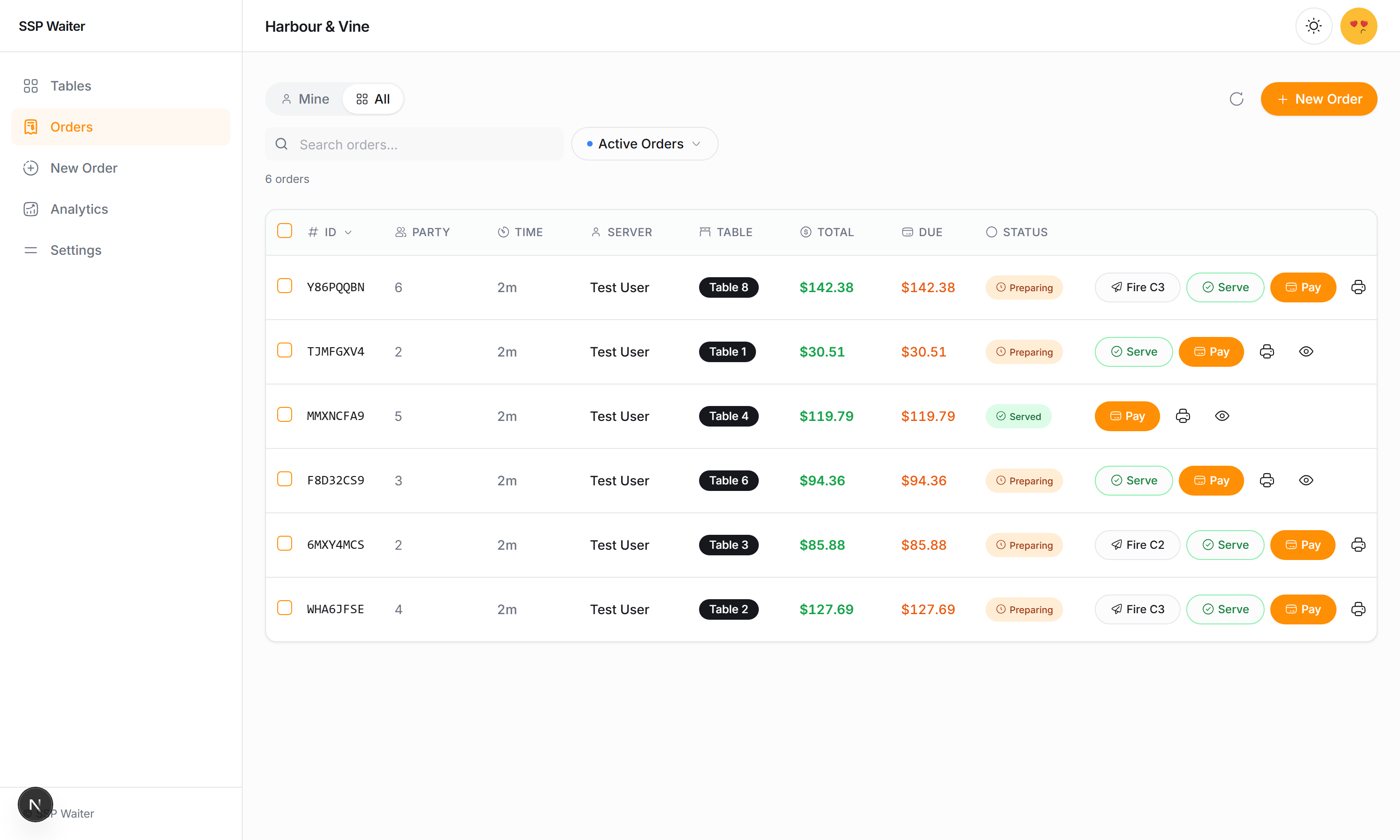
Each row carries the things you do most without opening the order. A button appears only when its action is possible:
| Button | Appears when | Does |
|---|---|---|
| Fire C2 | a course is held (the next one) | fires that course — see Courses |
| Serve | the order is Preparing | marks the order served |
| Pay | money is due on a submitted, payable order | opens the order with the payment sheet already up |
| 🖨️ | always | prints the check |
| 👁️ | always | opens the order |
Tapping anywhere else on the row opens the order. The checkbox and the buttons keep their own taps.
Unsent drafts get only print and open: a draft is not a bill yet.
Searching
Use the search box to find orders by ID:
- Type part of an order ID (e.g., "ZNP")
- Search is debounced (waits 500ms after typing)
- Results filter in real-time
Selecting Orders
Single Selection
Click the checkbox next to any order to select it.
Multiple Selection
- Click multiple checkboxes to select several orders
- Use the header checkbox to select/deselect all visible orders
Selection Requirements
Different actions require different selections:
| Action | Selection Required |
|---|---|
| View Order | 1 order |
| Assign Server | 1 order |
| Split Order | 1 order |
| Move to Table | 1 order |
| Merge Orders | Exactly 2 orders |
| Cancel | 1+ pre-kitchen orders |
| Void | 1 post-kitchen order |
| Complete | 1+ paid orders |
Bulk Actions
Merge Orders
Combine two orders into one.
Requirements:
- Exactly 2 orders selected
- Permission:
canMergeOrders
Process:
- Select exactly 2 orders
- Click Merge Orders
- Confirm the merge
- Items from the second order move to the first
- Second order is closed
Use Cases:
- Guests at separate tables want one check
- Accidentally created duplicate orders
Cancel Orders
Cancel orders before they're sent to kitchen.
Requirements:
- Orders still reading Ordered (nothing sent to the kitchen yet)
- Permission:
canCancelOrders
Process:
- Select one or more pre-kitchen orders
- Click Cancel Order(s)
- Confirm cancellation
- Orders are marked CANCELLED
Cancelled orders cannot be recovered. Use this only for orders that should never have been created.
Void Orders
Void orders after they've been sent to kitchen.
Requirements:
- Orders reading Preparing, Ready, Served or Partially paid
- Single order only
- Permission: Manager approval required
Process:
- Select one post-kitchen order
- Click Void Order
- Enter void reason
- If you lack permission, manager enters PIN
- Order is marked VOIDED
Use Cases:
- Kitchen made wrong item
- Guest refused food
- Significant quality issue
Complete Orders
Mark paid orders as completed and free tables.
Requirements:
- Orders in: PAID status only
- All selected orders must be PAID
Process:
- Select one or more PAID orders
- Click Mark as Completed
- Confirm completion
- Orders read Completed and their tables are freed
- Associated tables become Available
Single Order Actions
When exactly one order is selected, additional actions appear:
Assign Server
Reassign an order to a different server.
Requirements:
- Permission:
canAssignOrders
Process:
- Click Assign Server
- Select the new server from the list
- Click Assign
- Order updates with new server
Split Order
Divide one order into multiple orders.
Requirements:
- Permission:
canSplitOrders
Process:
- Click Split Order
- Select items for each new order
- Confirm the split
- Original order is divided
- New orders are created
Use Cases:
- Guests want separate checks
- Party splitting the bill by person
Move to Table
Transfer an order to a different table.
Requirements:
- Permission:
canTransferTable
Process:
- Click Move to Table
- Search or scroll to find the target table
- See table status (Available, Occupied, etc.)
- Select the destination table
- Or select To-Go / No Table for pickup orders
- Click Move Order
Use Cases:
- Guests moved to different table
- Convert dine-in to to-go
- Assign table to phone/pickup order
View Order
Click the 👁️ eye icon — or the row itself — to open the full order details panel.
Mixed Selection Warning
If you select orders with incompatible statuses (for example one Ordered and one Preparing), you'll see:
"Mixed selection: select only pre-kitchen or post-kitchen orders"
This is because:
- Pre-kitchen orders can be cancelled
- Post-kitchen orders must be voided
- You cannot mix these operations
Real-Time Updates
The Orders view automatically updates when:
- New orders are created
- Order status changes
- Payments are processed
- Kitchen updates item status
Updates arrive live over the location's private orders channel. As a backstop the list re-reads itself every 60 seconds, so a dropped connection never leaves it stale for long.
Empty States
My Orders (empty)
"No orders assigned to you. Switch to 'All Orders' to see all orders."
No Search Results
The table shows no rows, but you can:
- Clear the search
- Adjust status filters
- Check spelling of order ID
Pagination
For locations with many orders:
- Orders are loaded in pages
- Current page and total shown at bottom
- Use Load More to fetch additional orders
Common Workflows
Finding a Specific Order
- Use search box with order ID fragment
- Or filter by status + table number
- Or switch to "All Orders" and sort by ID
Processing End-of-Shift
- Filter to "Needs Payment"
- Process payments for remaining orders
- Filter to "Ready to Close"
- Select all paid orders
- Click Mark as Completed
Handling Complaints
- Find the order in the list
- Select it
- Use Void Order if post-kitchen
- Or Cancel if pre-kitchen
- Create new order if needed
Reassigning Tables
- Filter to "My Orders"
- Select orders to transfer
- Use Assign Server to reassign
- Or Move to Table to change location
Permissions Reference
| Action | Permission Required |
|---|---|
| View orders | Basic access |
| View all orders | Host/Manager role |
| Merge orders | canMergeOrders |
| Split orders | canSplitOrders |
| Assign servers | canAssignOrders |
| Move to table | canTransferTable |
| Cancel orders | canCancelOrders |
| Void orders | Manager approval |
| Complete orders | Basic access |
Troubleshooting
Orders Not Showing
Check:
- Current status filter - expand to include more statuses
- View mode - try "All Orders"
- Date range - very old completed orders may not load
Can't Cancel/Void Order
Check:
- Order status - only specific statuses allow each action
- Your permissions - may need manager approval
- Mixed selection - ensure all selected orders are compatible
Search Not Working
Check:
- Search is case-insensitive
- Use partial ID match (e.g., "ZNP" not "#ZNP338")
- Wait for debounce delay (500ms)
Related Features
- Tables Management - Table-centric order view
- Order Creation - Creating new orders
- Payments - Processing order payments
- Discounts & Refunds - Adjusting order totals