Reading a ticket
Every order on the board is a card. This page reads one from top to bottom; Working a ticket covers what each tap does.
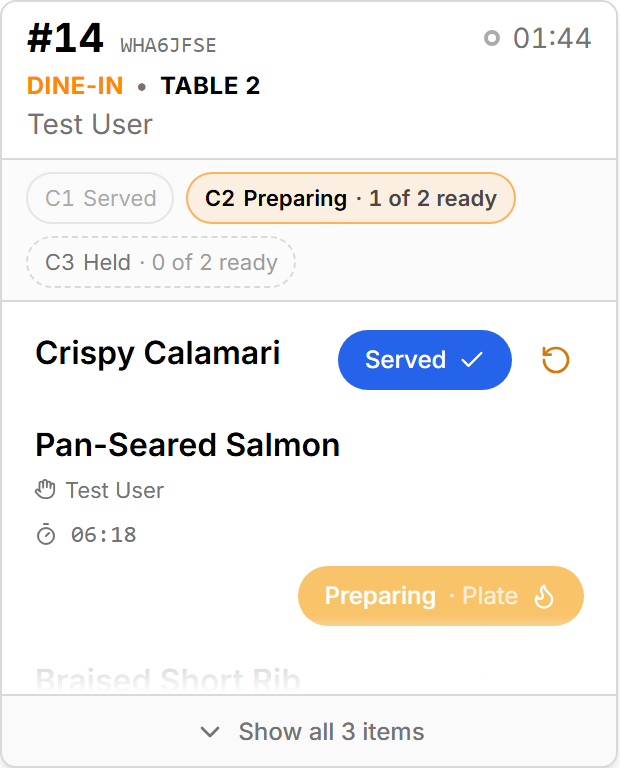
The header
Tap anywhere on the header to open the Order Details sheet.
| Element | What it shows |
|---|---|
| Order number | The ticket's number for the day in large type (#12), with the order code in small type beside it. Orders without a daily number show the code alone. |
| Type and destination | DINE-IN • TABLE 7, TAKEAWAY • Website, DELIVERY • DoorDash Drive — the order type, then the table for dine-in or the source (ordering site or delivery partner) for everything else. Counter, bar, walk-in and pickup "tables" are not shown as tables. |
| Who | The server's name for dine-in; the customer's name for takeaway and delivery. A pre-order adds the requested time (• 18:30). |
| Ticket clock | How long the ticket has been on the board. See below. |
| Status dropdown | Only on screens that own the ticket (see Screens and views). |
Party size is not on the card face — it is in the Order Details sheet.
The ticket clock
The clock counts up from the moment the waiter submitted the ticket, in mm:ss then hh:mm:ss.
| Colour | Meaning |
|---|---|
| Grey, hollow dot | Under 10 minutes |
| Amber, bold, filled dot | 10 minutes or more |
| Red, larger, filled dot | 15 minutes or more — or the ticket has triggered the unstarted alarm, whatever its age (hover: Nobody has started this ticket) |
These 10 / 15 minute marks are fixed. The configurable thresholds are on the lines, not the ticket clock: see Line timers and Alarms and sounds. The state is shown by colour, dot shape and weight together, so it reads on a screen with a colour cast.
Rings
- A red ring and shadow means the waiter marked the order RUSH; a red RUSH badge sits at the top of the card too.
- A pulsing red ring means the unstarted alarm is active for this ticket: nobody has touched any of its lines for longer than the station allows. It takes precedence over the rush ring.
- A brief blue ring means you just tapped an alarm chip and the board scrolled here.
Special instructions
Notes the waiter typed for the whole ticket appear in an amber panel headed Special instructions, one bold line each, always visible even when the rest of the card is clipped. The KDS never labels a note as an allergy — it shows exactly what the waiter wrote, so write allergies in the note.
Course chips
When the ticket has courses, a row of chips reads C1 Ready · 2 of 3 ready, C2 Held · 4 of 4 and so on, one per course. The current course (the first one not yet served) is bold. Dashed means held, green-bordered means every plate is ready, filled green means released to the runner, dimmed means served. All screens show the chips; only the Expo screen gets buttons to act on them. See Courses and the Expo screen.
Lines
Each dish on the ticket that belongs to this screen's station is a row: name, modifiers (+ No onions), the cook who claimed it, hold reason, and the status pill. Rows are grouped when identical, clipped when the card grows past a certain height (Show all N items opens it), and tapped to move. Everything about rows is in Working a ticket.
Two badges can appear on a row:
- Unrouted — SSP could not find a routing class for this dish, so it landed on the Default station. Fix the item's class in SSP Manager; see Kitchen Routing.
- also at: Grill, Fry — the dish is shared with other stations; plating it here clears it everywhere listed.
Coming later
Lines of courses that have not been fired yet are not on the ticket proper. They sit under it in a collapsed Coming later strip — Coming later · 3 · C2, C3 — so the cook knows what is behind this table without it cluttering the board. Tap to open it and read the dishes per course.
The Order Details sheet
Tapping the header opens a sheet with the full picture: table and order type, order number and code, server, Party Size, submission time, RUSH ORDER when set, Kitchen Instructions, Modification Notes and Total Items (every line on the order, not just this station's).