Tables Management
The Tables view is the primary workspace for servers and hosts, providing a real-time overview of all tables and their order status.
Overview
Tables Management allows you to:
- View all tables at your location with live order status
- Monitor guest seating duration with urgency indicators
- Quickly access orders for any table
- Toggle table availability status
- Create new orders for empty tables
- Complete paid orders and free tables
Navigation: Sidebar → Tables
View Modes
Toggle between two viewing modes using the tabs at the top:
Mine (Default)
Shows the tables assigned to you through your sections (configured in SSP Manager) first; every other table is dimmed and cannot be tapped.
Best for: Servers focusing on their section during a shift.
If nothing is assigned to you for the shift, the page lands on All instead of a dimmed grid.
All
Shows every table at your location, regardless of assignment.
Best for: Hosts, managers, and when you need to help other sections.
Cards or Layout
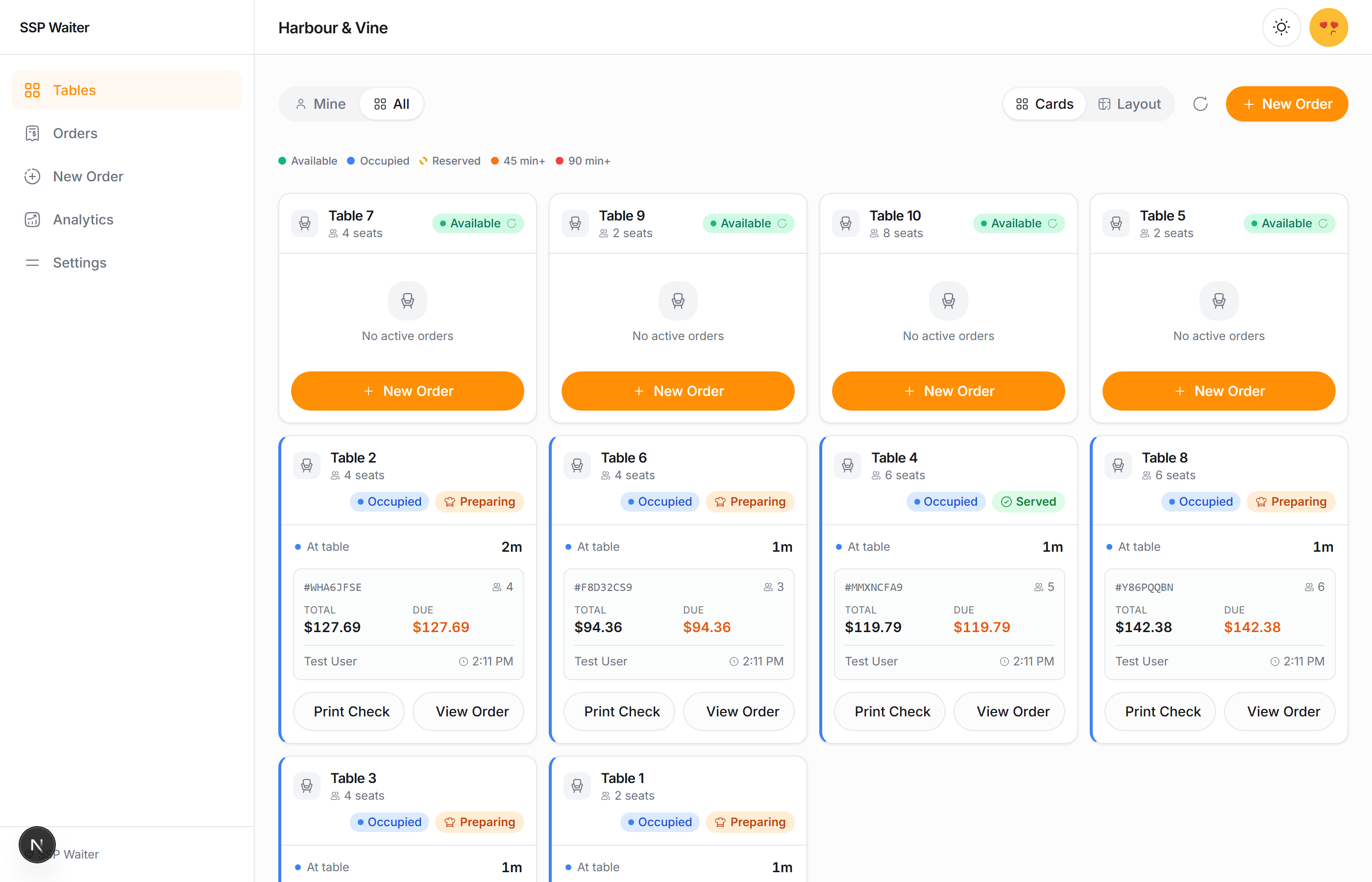
The Cards / Layout toggle switches between the card grid and the floor plan drawn in SSP Manager. Both use the same colours.
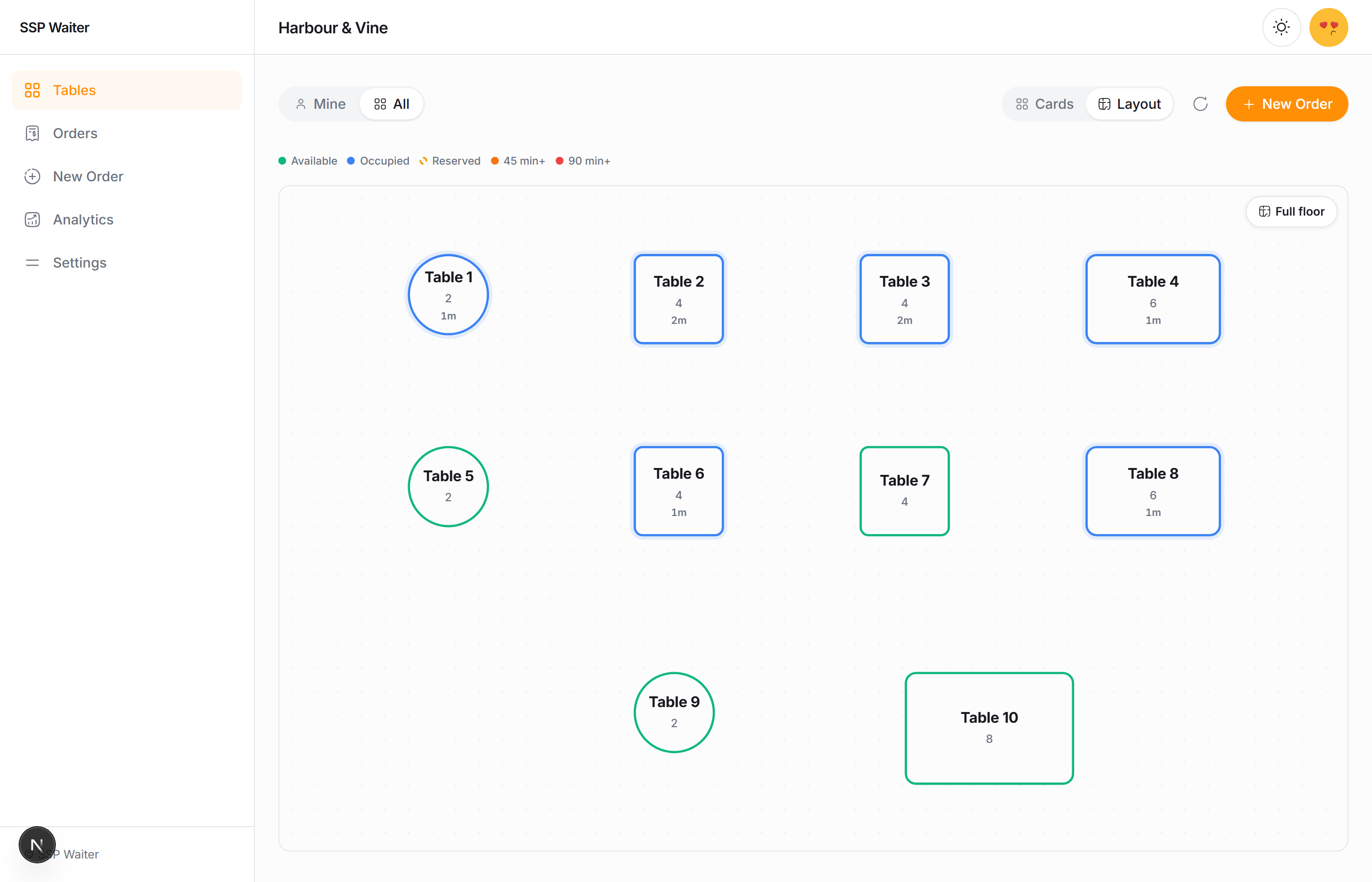
The room, not just the tables
The floor plan draws the structure of the room alongside the tables — walls, doors, the bar, the host stand, pillars, dividers, plants, the kitchen, storage and the restrooms — exactly as they were placed in SSP Manager.
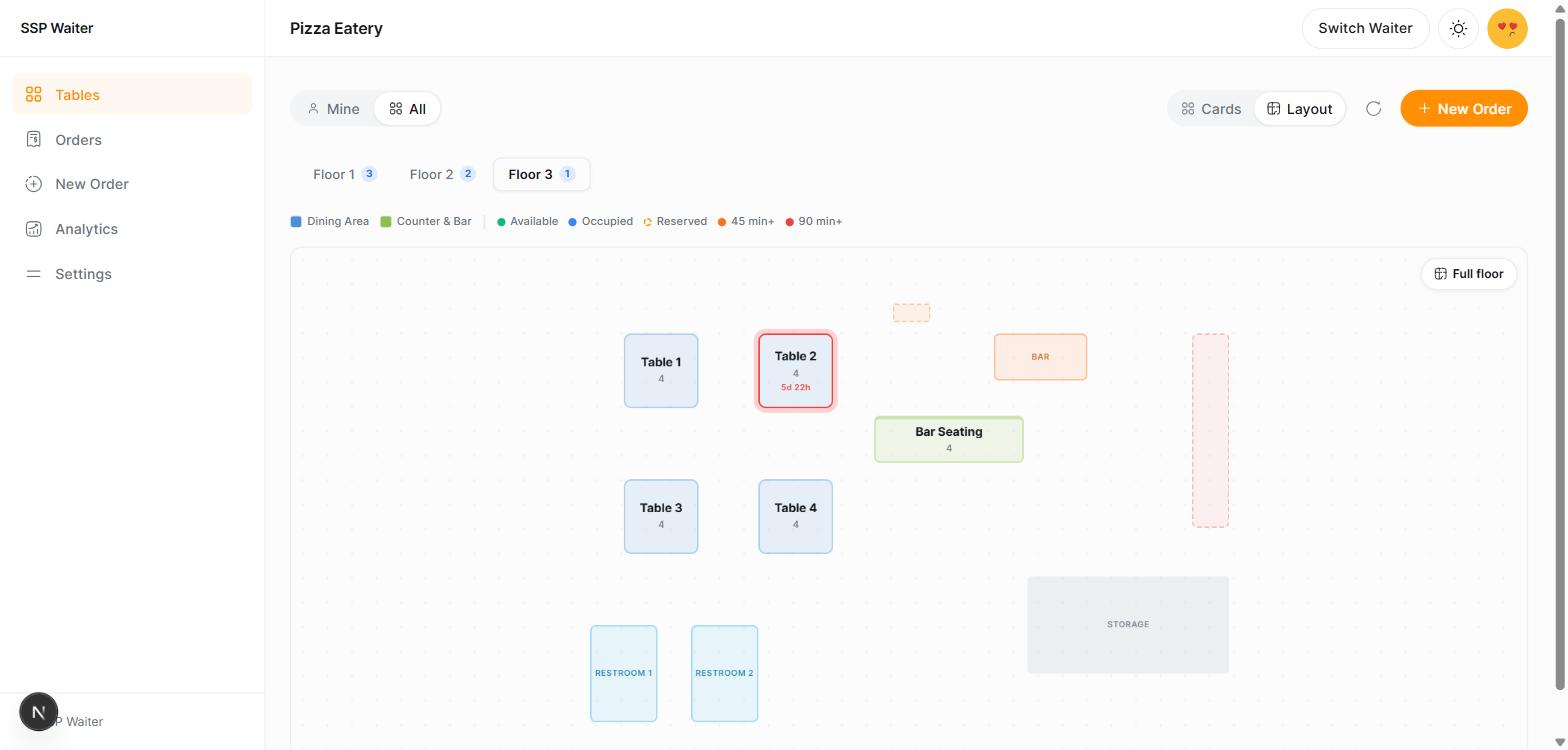
It is there so the plan reads as the room you are standing in. Finding table 12 on a grid of identical rectangles is a memory exercise; finding it past the bar, near the restrooms is not.
Structure is drawn behind the tables and cannot be tapped, so it never gets in the way of the table you were reaching for. It is not editable here — the floor plan is laid out in SSP Manager, and the waiter shows it.
Each floor keeps its own structure. The floor tabs carry a count of the tables on each floor, and switching floors changes the walls with the tables. A floor that has had its structure drawn but no tables placed yet still shows the room.
Structure is optional. A location whose floor plan is only tables looks exactly as it did before — there is nothing to turn on and nothing to configure.
What the colours mean
One legend sits above both views:
| Colour | Meaning |
|---|---|
| 🟢 Green | Available |
| 🔵 Blue | Occupied — a party is seated |
| 🟡 Amber, dashed | Reserved — held for a party not yet here |
| ⬜ Grey | Cleaning, maintenance or out of service |
| 🟠 Orange | Seated for 45 minutes or more |
| 🔴 Red | Seated for 90 minutes or more |
The ring of a table (the card's left accent, the floor shape's border) answers one question: how is this table doing? A seated table's ring is blue and turns orange, then red, as the party runs long. The order's own status (Preparing, Ready, Served, Paid…) is a badge in the header and never colours the ring, so an orange ring always means time, not cooking.
Table Cards
Each table is displayed as a card showing comprehensive status information.
Card Anatomy
┌─────────────────────────────────────────┐
│ 🍽️ Table 5          [Status Badge]      │
│ 4 seats              [Order Status]     │
├─────────────────────────────────────────┤
│                                         │
│  ⏱️ Time at Table: 45m                  │
│  👥 Party Size: 3                       │
│  💰 Total: $87.50                       │
│  💳 Paid: $50.00  |  Due: $37.50        │
│                                         │
│  ┌─────────────────────────────────┐    │
│  │ Order #ZNP338  [SERVED]         │    │
│  │ 3 items • $87.50                │    │
│  └─────────────────────────────────┘    │
│                                         │
│  [View Order]        [New Order]        │
└─────────────────────────────────────────┘
Table Status Badges
Tables can have the following statuses:
| Status | Color | Description |
|---|---|---|
| Available | 🟢 Green | Ready for seating |
| Reserved | 🟡 Amber | Upcoming reservation |
| Occupied | 🔵 Blue | Currently has active orders |
| Cleaning | ⬜ Gray | Being cleared/cleaned |
| Out of Service | ⬜ Gray | Not available for use |
Order Status Badges
When a table has orders, you'll see the primary order status:
| Status | Color | Meaning |
|---|---|---|
| New | 🔵 Blue | Just created, no items |
| Draft | 🔵 Blue | Items added, not submitted |
| Pending | ⚪ Gray | Awaiting action |
| Preparing | 🟠 Orange | At least one plate is being cooked |
| Served | 🟢 Green | Food delivered |
| Partial Pay | 🟣 Purple | Some payment received |
| Paid | ✅ Green | Fully paid |
Visual Urgency Indicators
Card Border Colors
The card's left accent follows the legend above: blue while seated, orange from 45 minutes, red from 90. A RUSH order adds a red RUSH badge in the header.
Time at Table
Shows how long guests have been seated with urgency coloring:
| Duration | Color | Meaning |
|---|---|---|
| < 45 min | 🔵 Blue | Normal |
| 45-90 min | 🟠 Orange | Long wait - check on table |
| > 90 min | 🔴 Red | Very long - immediate attention |
RUSH Orders
High-priority orders are highlighted with a 🔴 red RUSH badge in the card header and on the order's own row.
Quick Actions
Cycling Table Status
Click the status badge to cycle between:
- Available ⟷ Reserved
You cannot manually set Occupied status - this is automatically set when orders are created. Cleaning and Out of Service must be set in SSP Manager.
Viewing Orders
Click View Order to open the order details panel, or click anywhere on the card to see all orders for that table.
Creating Orders
Click New Order on an empty table, or use the + Create Order button in the header to start a new order.
Complete & Free Table
When all orders are PAID, a Complete & Free Table button appears. This:
- Marks the table's paid orders as Completed
- Changes table status to Available
- Clears the table for new guests
Multiple Orders Per Table
A single table can have multiple active orders (e.g., separate checks for a party). When this occurs:
- The card shows aggregated totals
- Each order is listed separately
- Click the card to view all orders in a sheet
- Each order can be managed independently
Viewing All Orders
Click anywhere on a table card with multiple orders to open the All Orders sheet:
┌─────────────────────────────────────────┐
│ Table 5 - All Orders                    │
├─────────────────────────────────────────┤
│ Order #ZNP338                           │
│ Server: John  •  Party: 2  •  SERVED    │
│ $45.00 total  •  $45.00 remaining       │
│ [View Order]                            │
├─────────────────────────────────────────┤
│ Order #ABC123                           │
│ Server: John  •  Party: 2  • Preparing  │
│ $42.50 total  •  $42.50 remaining       │
│ [View Order]                            │
└─────────────────────────────────────────┘
Real-Time Updates
The Tables view automatically updates when:
| Event | Update |
|---|---|
| Order submitted to kitchen | Status badge changes to Preparing |
| Items marked as served | Status badge changes to "Served" |
| Payment received | Balance updates, status may change |
| Order completed | Table becomes available |
| Table status changed | Badge updates immediately |
Polling Behavior
- Tables with active orders poll for updates every 30 seconds
- Empty tables do not poll (reduces server load)
- Manual refresh available via the refresh button
Filtering and Sorting
Quick Stats
The header shows summary information:
- Total number of tables displayed
- Number of sections (if viewing assigned tables)
Empty State
If no tables match your current view:
Mine with nothing assigned: the page switches to All by itself. If you go back to Mine, every table is dimmed and a notice says so.
All (empty):
"No Tables Found. There are no tables configured for this location yet. Contact your administrator to set up tables."
Common Workflows
Seating New Guests
- Find an Available table with appropriate capacity
- Click New Order on the table card
- Set the party size (touch-friendly +/- controls)
- Click Create Order
- Add items and submit to kitchen
Checking on Tables
- Review the Time at Table indicator
- Orange/red times need attention
- Check order status - is food ready?
- View balance - is payment needed?
End of Service
- Ensure all orders are PAID
- Click Complete & Free Table
- Table becomes Available for next guests
Handling RUSH Orders
- RUSH orders show red highlighting
- Prioritize kitchen communication
- Expedite service for these tables
Troubleshooting
Table Not Showing
Check:
- Are you in "Mine"? Switch to "All"
- Is the table assigned to your section?
- Has the table been configured in SSP Manager?
Status Won't Change
Check:
- Only Available ⟷ Reserved can be manually toggled
- Occupied is automatic when orders exist
- Cleaning/Out of Service set in SSP Manager
Orders Not Updating
Try:
- Click the refresh button
- Check your internet connection
- The page auto-refreshes every 30 seconds for active tables
Related Features
- Order Creation - Creating new orders
- Orders Management - Managing multiple orders
- Payments - Processing payments
- Table Management (SSP Manager) - Configuring tables