Orders
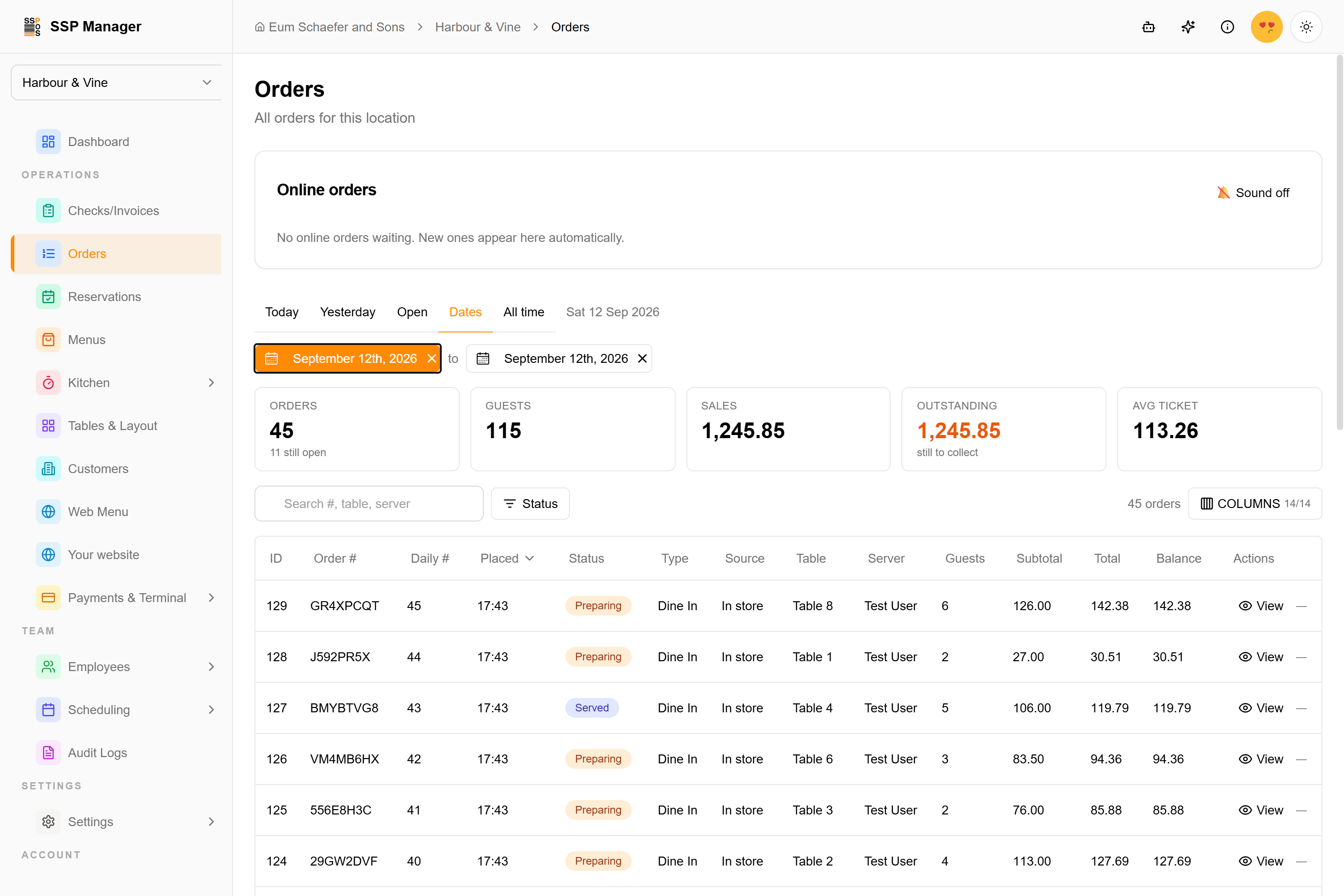
The Orders page is where a manager watches a service: what is on the floor right now, what the day has sold, what is still owed, and every order behind those numbers. Open it from the sidebar under Operations → Orders.
Online orders come first
At the top of the page sits the Online orders queue. Orders placed on your website or through a delivery integration land here until someone accepts them; nothing reaches the kitchen before that. A sound alert can be turned on or off from the queue's header. When the queue is empty it says so, and new orders appear automatically.
The queue sits above the table on purpose: these are the only orders on the page that need an action rather than a look, and an order nobody answers is rejected when its acceptance window closes.
Pick a scope
The bar under the queue decides which orders you are looking at:
| Scope | What it shows |
|---|---|
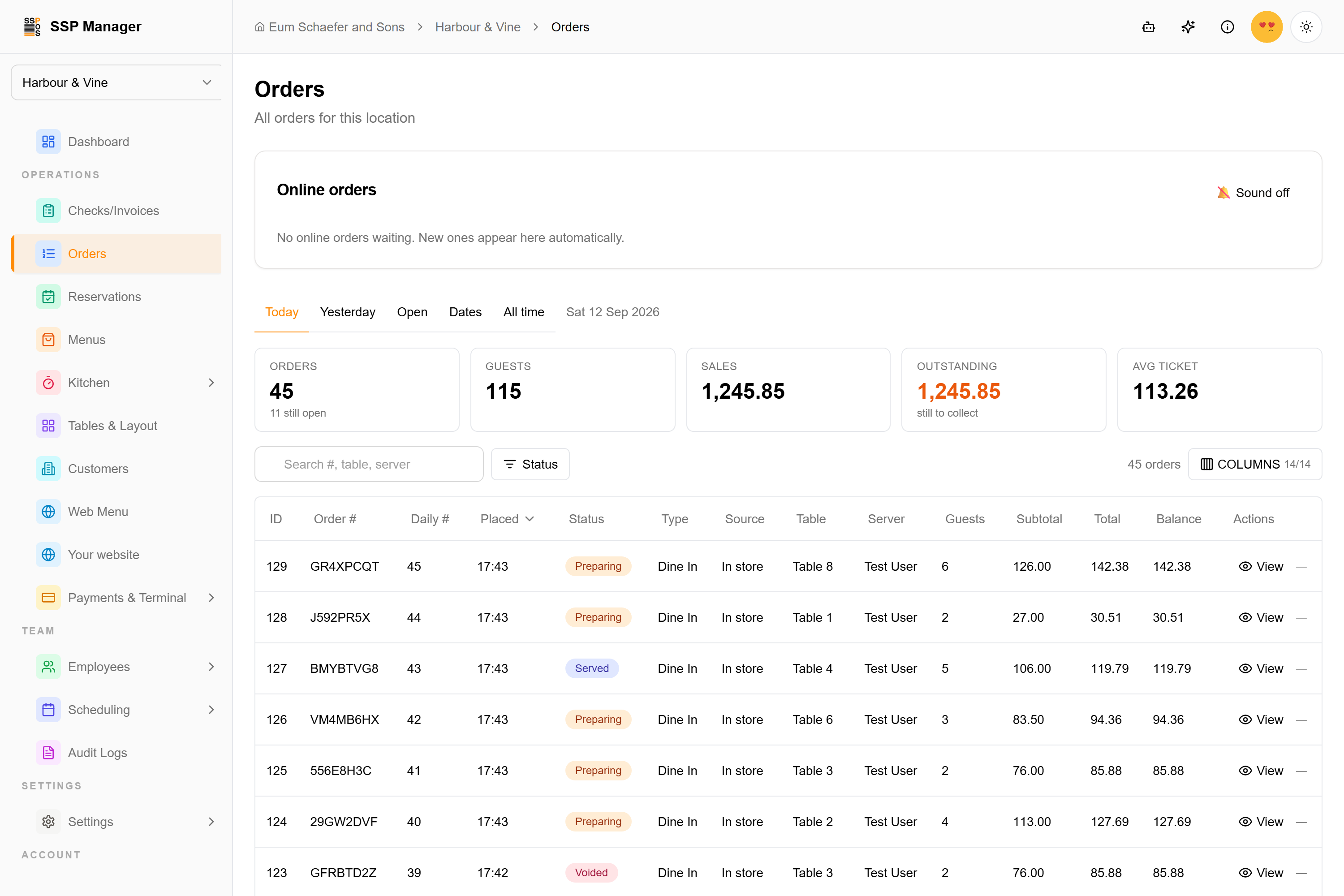
| Today | Orders placed today. The default when the page opens. |
| Yesterday | Orders placed yesterday. |
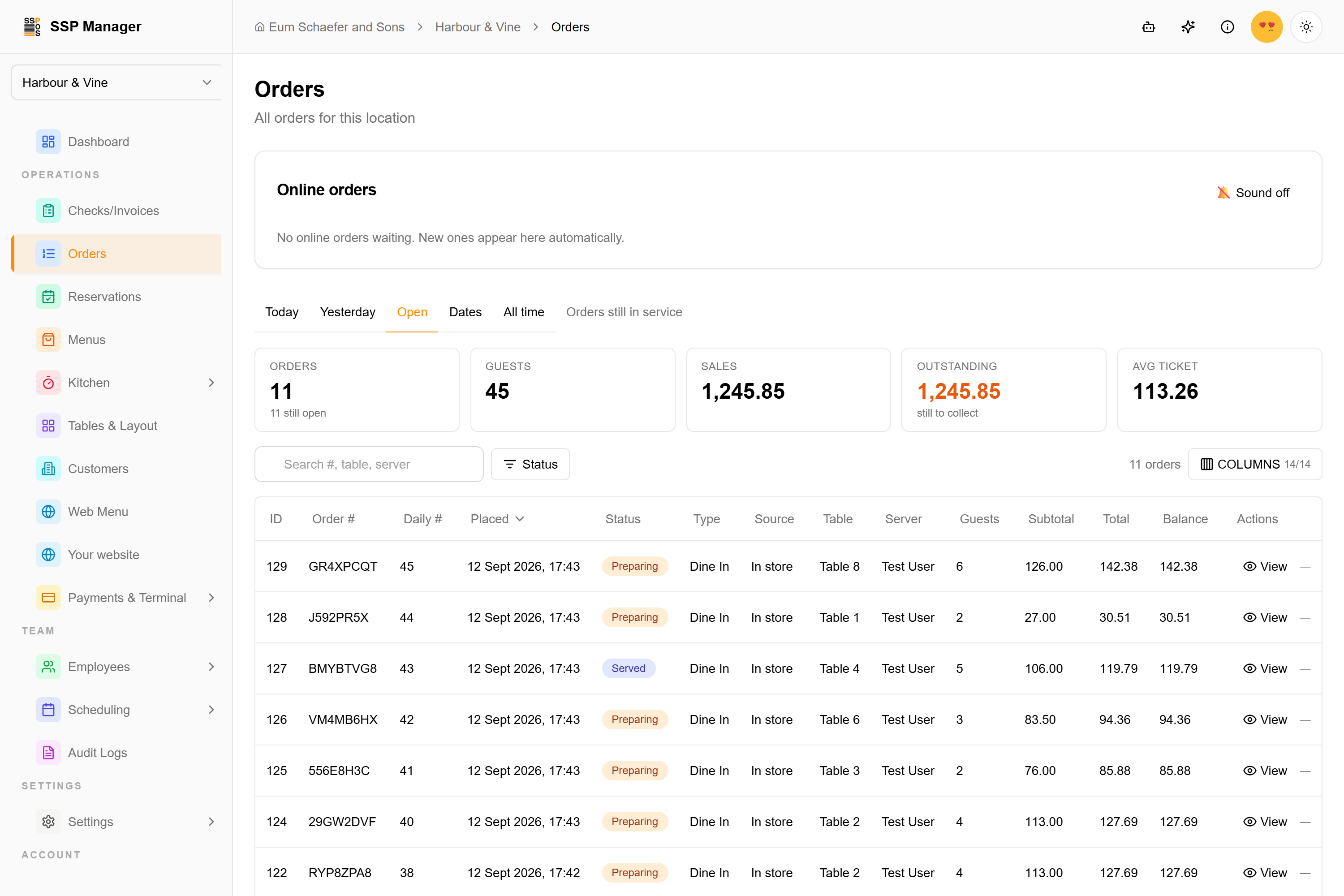
| Open | Orders still in service: not yet paid, cancelled or voided, whatever day they were placed. |
| Dates | A range of days. Two date pickers appear; pick a first and a last day. |
| All time | Every order the location has ever taken. |
A caption beside the bar spells out the scope, for example Sat 12 Sep 2026 or 10 – 12 Sep 2026.
"Today" is reckoned in the location's timezone, not the computer you are reading on. An order placed at 23:30 local time belongs to that day, even if it is already tomorrow somewhere else. Every time on the page — in the list and in an opened order — is shown on the location's clock too, so 17:43 means 17:43 in the restaurant wherever you are reading from.
Today and Open are live views: they re-read on their own every 30 seconds. The other scopes are history and load once.
The summary strip
Five tiles above the list total the whole scope, not just the page of rows on screen:
| Tile | Meaning |
|---|---|
| Orders | How many orders are in scope, and how many of them are still open. |
| Guests | Covers: the sum of party sizes. |
| Sales | The order totals added up. Cancelled, voided, failed, abandoned and refunded orders never count. |
| Outstanding | Money still to collect on orders that can still be paid. Reads all settled when there is none. |
| Avg ticket | Sales divided by the orders that count toward sales. |
Change the scope, the search or the status filter and the tiles follow.
Find an order
- Search matches the order code, the daily number a guest reads out, the table name and the server's name. Partial text is enough:
Patiofinds every order on the patio tables,Samfinds Sam's orders. - Status opens a list of statuses to tick. Each one you pick shows as a chip under the toolbar so a filter can never be in effect silently; Clear removes them all.
- The Balance column shows what is still owed on each order, or Paid. Sort by it to bring the orders with the most outstanding to the top.
- Sort by clicking a column header. Columns can be hidden or shown from the Columns button, and the page size can be 10, 25, 50 or 100 rows.
On a single-day scope the Placed column shows the time only; the date is in the caption.
Open an order
Click anywhere on a row to open the order in a panel on the right, without leaving the list.
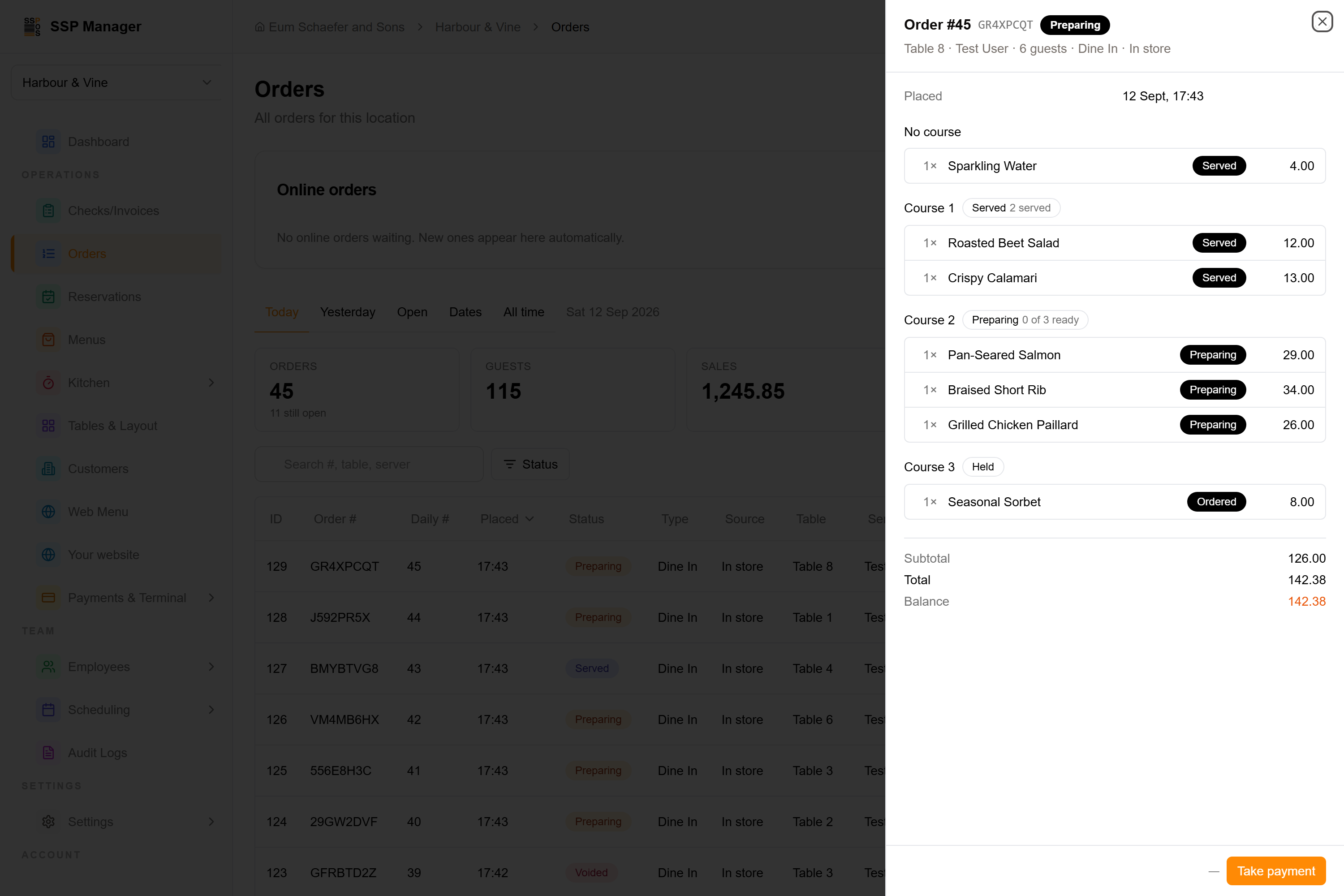
The panel shows:
- The order number, its code, its status, the table, the server, the number of guests, the order type and where it came from.
- When it was placed and, for online orders, the customer.
- What was ordered, course by course. Each course carries its state (Held, Sent, Preparing, Ready, Ready to collect, Served) and how many of its plates are ready, and every line shows its own kitchen status.
- Subtotal, total and Balance: the amount still due, Paid once it is settled, or the order's status (Cancelled, Voided and so on) when it is an order nobody can pay any more.
Two actions live at the bottom of the panel:
- Take payment appears while there is money to collect on an order that can still be paid. It opens the virtual terminal with this order already loaded, so there is no code to copy across. It never appears on a cancelled, voided, refunded or abandoned order, even if a balance is left on it.
- Close appears for orders that never reached the kitchen: still being built, or waiting to be accepted. Use it for an order that was opened by mistake or abandoned before anything was sent. You are asked to confirm and can add an optional reason, which is kept with the order. The order is marked Cancelled and leaves the kitchen board; nothing is refunded, because at that stage no payment was taken and no food was made. Closing needs the cancel orders permission. An order that is already cooking cannot be closed here — voiding it is a manager action with its own approval.
The Actions column of each row has View, and Close where it applies. People without the cancel orders permission don't see Close anywhere.
Looking back
Use Dates for anything older than yesterday: pick a first and last day and the list, the tiles and the search all work over that range. All time is the ledger of everything the location has taken, newest first.